How to Change Keyboard Background on Your Phone (Plus Custom Photo Tool)
Exact Gboard and iOS theme steps — plus an instant tool to darken or clean up your photo so keyboard letters stay readable.
Drop your photo here or tap Upload Image
Supports JPG, PNG, WebP up to 15 MB · Default Preset: #000000
Your photo stays on your device.
Select Background Colour Swatch (In-Page State — No URL Reload):
Or Pick a Curated Studio / Festival Backdrop:
Looking for a reliable way to master how to change keyboard background on your smartphone or laptop in India? You can jump straight into our interactive change photo background tool at /change-photo-background to process your image right now, or follow this step-by-step tutorial below. Many Android and iPhone users in India search "how to change keyboard background" wanting to put their own photo behind Gboard or iOS keyboards — and quickly discover that busy photo backgrounds make the keyboard letters impossible to read.
Answers the exact Gboard (`Settings -> Theme -> My Themes`) steps AND provides our embedded tool preset to swap busy photo backgrounds to clean dark/matte black (`#000000`) so keyboard keys stay legible. Because every control runs inside this single clean URL (/keyboard-background), you can test multiple shades, aspect ratios, and export formats for custom photo on gboard keyboard, change phone keyboard wallpaper, crop photo for keyboard theme without page reloads or watermarks.
- Primary Target / Spec
- Google Gboard (Android) — Open Gboard -> Tap Palette icon (Theme) -> My Themes (+) -> Pick Photo -> Adjust Brightness
- Default Background & Format
- #000000 · JPG / PNG-24 / WebP (Max 15 MB)
- Data Processing & Watermark
- Client-Side Browser Memory · Free Full-HD Export (No Watermark)
हिंदी में संक्षेप: मोबाइल कीबोर्ड (Gboard और iPhone) पर अपनी फोटो या नया बैकग्राउंड कैसे लगाएं
Status: DRAFT · Native Hindi Review Pendingयह S01 हिंदी अनुभाग (मोबाइल कीबोर्ड (Gboard और iPhone) पर अपनी फोटो या नया बैकग्राउंड कैसे लगाएं) भारतीय उपयोगकर्ताओं के लिए विशेष रूप से देवनागरी में तैयार किया गया है। फोन या कंप्यूटर पर "how to change keyboard background" करते समय यह टूल आपकी फोटो को सीधे ब्राउज़र में सुरक्षित रखता है। पासपोर्ट साइज फोटो के लिए सफेद बैकग्राउंड, पैन कार्ड सिग्नेचर या ई-कॉमर्स लिस्टिंग के लिए फोटो अपलोड करें और तुरंत बिना वाटरमार्क डाउनलोड करें।
आपकी फोटो आपके अपने डिवाइस पर ही सुरक्षित रहती है (Your photo stays on your device).
How to Use How to Change Keyboard Background on Your Phone (Plus Custom Photo Tool) (Step-by-Step)
01. Select Your Photo for how to change keyboard background
Click the blue "Upload Image" button above to load a JPG, PNG, or WebP file from your Android phone, iPhone, or computer. The segmentation engine initializes only after you select a file.
02. Inspect the Automatic Foreground Cutout
Within seconds, our on-device canvas pipeline separates the subject from the original background around hair, spectacles, collars, or product contours.
03. Apply Your Target Background (#000000)
Use the swatch row to switch between pure white (#FFFFFF), passport blue (#1E40AF), studio red (#DC2626), matte black (#000000), chroma green (#16A34A), gradients, or studio scenes.
04. Download Your Full-Resolution Image
Tap "Download" to save a crisp PNG-24 (for transparent cutouts), high-quality JPEG (for official portals), or WebP file directly to your device.
हिंदी में स्टेप-बाय-स्टेप प्रक्रिया (S01)
Status: DRAFT (Devanagari Steps)चरण 1: फोटो अपलोड करें (S01 वर्कस्पेस)
सबसे पहले नीले रंग के "Upload Image" बटन पर टैप करें और अपने फोन की गैलरी या लैपटॉप से वह फोटो चुनें जिसमें आपको "how to change keyboard background" करना है। आपकी फाइल आपके डिवाइस पर ही सुरक्षित रहती है।
चरण 2: बैकग्राउंड और किनारे (Edges) जांचें
हमारा ऑन-डिवाइस इंजन कुछ ही सेकंड में मुख्य व्यक्ति, उत्पाद या हस्ताक्षर को पुराने बैकग्राउंड से अलग कर देता है। कीबोर्ड पर फोटो लगाने से पहले उसका बैकग्राउंड गहरा या काला (#000000) कर लें ताकि टाइप करते समय अक्षर साफ दिखाई दें।
चरण 3: सफेद, नीला या पारदर्शी विकल्प चुनें
अपनी आवश्यकता के अनुसार नीचे दिए गए रंग स्वैच में से सफेद बैकग्राउंड (#FFFFFF), पासपोर्ट ब्लू, स्टूडियो सीन या पारदर्शी PNG विकल्प पर क्लिक करें।
चरण 4: फुल क्वालिटी में डाउनलोड करें
प्रीव्यू से संतुष्ट होने के बाद "Download" बटन दबाएं। सरकारी पोर्टल के लिए JPG और डिजाइन या लोगो ओवरले के लिए पारदर्शी PNG-24 फॉर्मेट चुनें।
Use Cases & Practical Tips for how to change keyboard background in India
Practical workflows for how to change keyboard background across India demand speed on mid-range mobile connections as well as pixel-level accuracy around hair, garments, and product edges.
Gboard & iOS Keyboard Theme Steps + Custom Photo Readability Fix
How to set a custom photo in Gboard and why darkening the photo background improves typing accuracy.
| Keyboard App | Steps to Set Custom Photo | How to Make Keys Readable |
|---|---|---|
| Google Gboard (Android) | Open Gboard -> Tap Palette icon (Theme) -> My Themes (+) -> Pick Photo -> Adjust Brightness | Replace busy background with Matte Black (#000000) in our tool first |
| Samsung One UI Keyboard | Settings -> General Management -> Samsung Keyboard -> Theme / Keys Cafe | See full guide: /keyboard-background/samsung |
| Apple iOS Keyboard (iPhone) | Native iOS keyboard supports Light/Dark only; third-party Gboard/SwiftKey allows photo themes | Use high-contrast 16:9 dark portrait export |
Why how to change keyboard background Matters for Indian Mobile and Desktop Users
Across India, millions of students, job applicants, small e-commerce sellers, and content creators search for "how to change keyboard background" and related workflows like custom photo on gboard keyboard, change phone keyboard wallpaper, crop photo for keyboard theme every month. Yet many international tutorials assume you own a desktop PC with paid studio software. In reality, most Indian photo editing happens on smartphones under indoor LED or tube-light conditions where wall shadows, colour casts, and tight portal KB limits create real friction.
Many Android and iPhone users in India search "how to change keyboard background" wanting to put their own photo behind Gboard or iOS keyboards — and quickly discover that busy photo backgrounds make the keyboard letters impossible to read. Answers the exact Gboard (`Settings -> Theme -> My Themes`) steps AND provides our embedded tool preset to swap busy photo backgrounds to clean dark/matte black (`#000000`) so keyboard keys stay legible. By combining on-device HTML5 Canvas processing with India-specific presets and our Changing Keyboard Background Across Mobile Keyboards reference table, this guide gives you both the practical theory and an immediate browser tool to finish the task without watermarks.
Common Mistakes to Avoid When Working on how to change keyboard background
First, avoid shooting with a front-facing selfie camera held too close to your face. Wide-angle front lenses at arm’s length exaggerate nasal proportions and hide your ears, which can trigger automated rejection on official Indian passport, visa, and exam portals. Instead, ask a family member or colleague to photograph you from 1.5 metres away using the rear camera at eye level facing natural window light.
Second, watch out for colour spill and format mismatches when handling custom photo on gboard keyboard, change phone keyboard wallpaper, crop photo for keyboard theme. If you need a true transparent cutout for Canva, Photoshop, or a digital signature stamp, exporting as JPEG will automatically fill transparent pixels with solid white. Conversely, if an online portal requires pure white, an unedited photo of a painted wall reads as dull grey to automated checks. Always replace the background layer with calibrated #FFFFFF white when pure white is specified.
Before and After Example
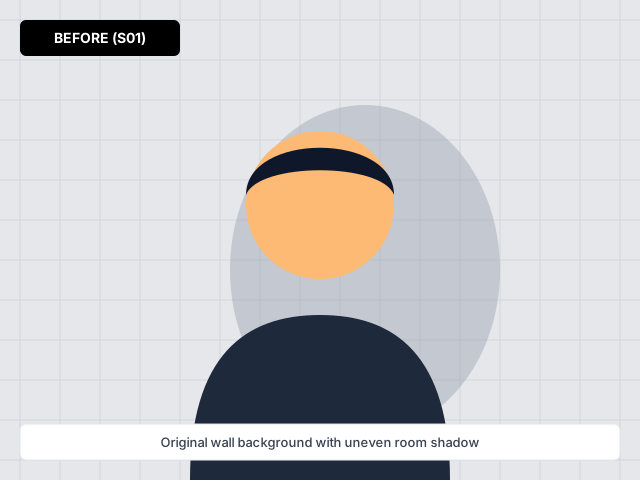
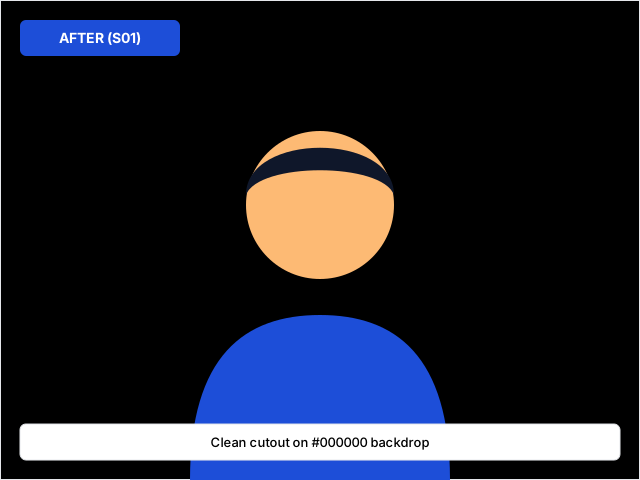
Before and after comparison for how to change keyboard background — processed on-device with zero watermark.
Frequently Asked Questions (English)
How does how to change keyboard background work on backgroundchange.in without uploading my private photo to a cloud storage bucket?
When you click "Upload Image" on /keyboard-background, our lazy-loaded segmentation and canvas compositing engine runs directly inside your browser tab on your Android phone, iPhone, or laptop. Your personal portrait, ID card, or signature stays in local device memory.
What is the best file format (JPG, PNG, or WebP) when exporting from How to Change Keyboard Background on Your Phone (Plus Custom Photo Tool)?
Choose JPG if you are uploading to an Indian government portal (such as Passport Seva, PAN, SSC, or UPSC) or an e-commerce main listing that requires a solid white (#FFFFFF) background and small KB size. Choose PNG-24 when you need a true transparent background for logos, signatures, or graphic design layers.
Can I use how to change keyboard background on a mid-range Android phone with a slow mobile data connection?
Yes. We statically generate all page text and only download the background processing engine after you tap Upload. In-page colour swatches and presets switch instantaneously without reloading the URL or adding query parameters.
Where can I verify the latest official specifications mentioned on /keyboard-background?
All technical colour codes, aspect ratios, and format guidelines on /keyboard-background are documented in our Changing Keyboard Background Across Mobile Keyboards table right on this page.
अक्सर पूछे जाने वाले सवाल (हिंदी FAQ — S01)
Status: DRAFT (3 Fresh Hindi FAQs)प्रश्न 1: क्या "how to change keyboard background" (S01) का उपयोग करते समय मेरी फोटो किसी बाहरी सर्वर पर सेव होती है?
नहीं। डिफ़ॉल्ट रूप से हमारा बैकग्राउंड टूल आपके अपने फोन या कंप्यूटर के ब्राउज़र (HTML5 Canvas) के अंदर ही काम करता है। आपकी व्यक्तिगत पासपोर्ट साइज फोटो, पैन कार्ड या हस्ताक्षर हमारे सर्वर पर स्टोर नहीं किए जाते।
प्रश्न 2: मोबाइल कीबोर्ड (Gboard और iPhone) पर अपनी फोटो या नया बैकग्राउंड कैसे लगाएं के लिए मुझे कौन सा बैकग्राउंड रंग और फाइल फॉर्मेट चुनना चाहिए?
अधिकांश भारतीय सरकारी फॉर्म (पासपोर्ट सेवा, पैन कार्ड, परीक्षा एडमिट कार्ड) और ई-कॉमर्स मुख्य लिस्टिंग के लिए शुद्ध सफेद बैकग्राउंड (#FFFFFF) और JPG फॉर्मेट चुनें, जबकि लोगो या सिग्नेचर के लिए पारदर्शी (Transparent PNG) डाउनलोड करें।
प्रश्न 3: कम रोशनी या घर की दीवार के सामने खींची गई फोटो से साफ कटआउट कैसे पाएं?
कीबोर्ड पर फोटो लगाने से पहले उसका बैकग्राउंड गहरा या काला (#000000) कर लें ताकि टाइप करते समय अक्षर साफ दिखाई दें। फोटो खींचते समय खिड़की की प्राकृतिक रोशनी की तरफ चेहरा रखें और दीवार से लगभग तीन फीट आगे खड़े हों ताकि पीछे गहरी परछाई न बने।
Explore All Pages in This Section
Step-by-step instructions for One UI High Contrast themes, Galaxy Themes, and Good Lock Keys Cafe custom photo backdrops.
Related Background Tools & Guides
Step-by-step instructions for One UI High Contrast themes, Galaxy Themes, and Good Lock Keys Cafe custom photo backdrops.
Upload any portrait, ID photo, or product shot and switch the background to white, blue, red, or a studio scene in one tap.
Isolate portraits, watches, and gold jewellery against a true matte black studio canvas in seconds.
Fast, low-data methods to remove and replace photo backgrounds on Samsung, Xiaomi, Realme, Vivo, and Pixel phones.
Eliminate yellowish tube-light tints and wall shadows to get a true RGB(255, 255, 255) white background.